Management Dashboard
The Management Dashboard provides a centralized view of essential workforce and project-related data. It enables managers to monitor timesheets, track logged hours, review financial risks, and manage invoices. The dashboard integrates multiple features to help in decision-making, risk management, and performance evaluation.
Key Features
- Timesheets Overview – Displays logged work hours for selected employees, including daily, weekly, and monthly summaries.
- Data Query – Enables targeted searches on work log entries, filtering by employee, project, and date.
- Risk Management – Identifies discrepancies in work logs, missing entries, or potential financial risks.
- Invoices Overview – Lists project-related invoices, showing statuses (paid, pending, overdue) and amounts.
How to Use
Timesheet Monitoring
-
Accessing the Timesheets
- Navigate to Management Dashboard > Timesheets.
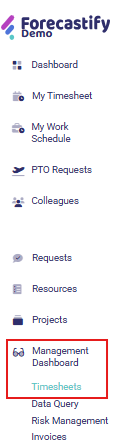
- Select the employee from the dropdown list.
- Choose the month to review logged work hours.

- Navigate to Management Dashboard > Timesheets.
-
Analyzing Logged Work Hours
-
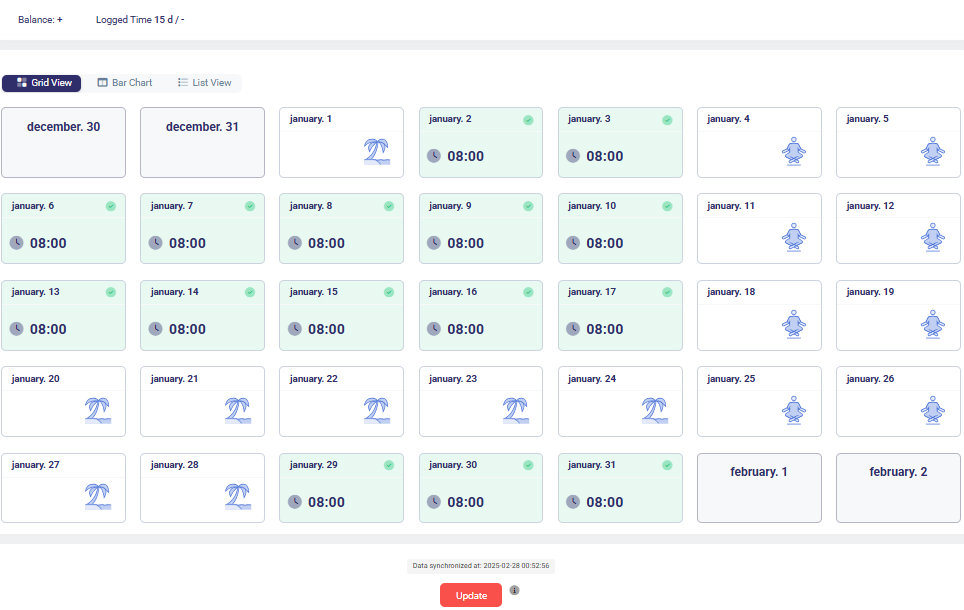
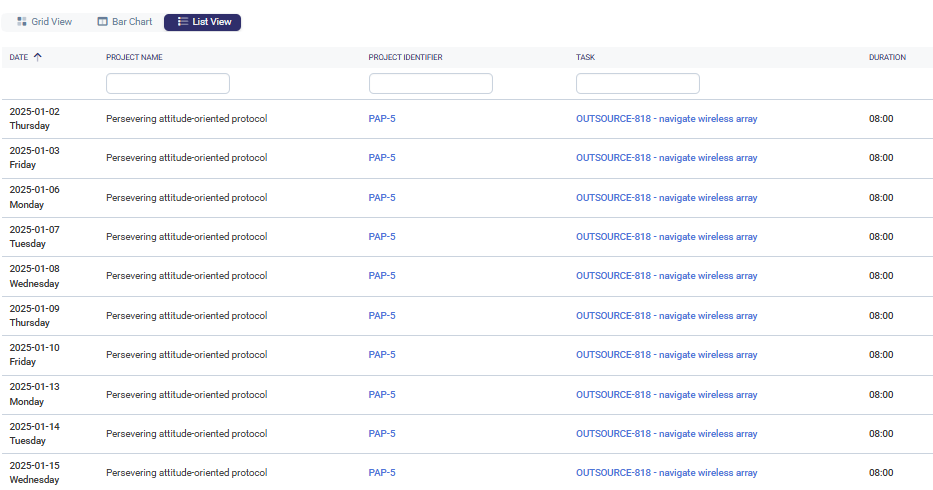
View the grid, bar chart, or list view of work hours.
-
Identify any missing entries or discrepancies.
-
Check the balance summary to compare expected vs. logged hours.

-
-
Exporting Timesheet Data
- Click the Export button to download reports.

- Use exported data for payroll or performance analysis.
- Click the Export button to download reports.
Risk Management Analysis
- Opening Risk Management Section
- Navigate to Management Dashboard > Risk Management.
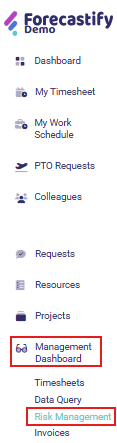
- Choose from risk categories such as Missing Logs, Unknown Logging, Unknown Tickets, Duplicated Tickets or Willingness to Log Work.
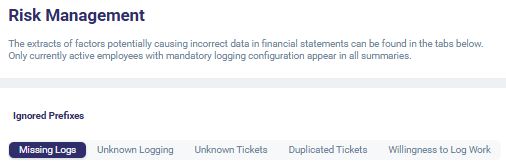
- Navigate to Management Dashboard > Risk Management.
- Identifying and Reviewing Risks
- Review total missing hours and potential financial impact.
- Filter by project, employee, or milestone to investigate specific issues.
- Assess work log anomalies and logging delays.
- Taking Action
- Contact employees to resolve missing log entries.
- Adjust financial records if discrepancies are found.
- Implement policy changes to improve logging accuracy.
Invoices
-
Accessing the Invoice List
- Navigate to Management Dashboard > Invoices.
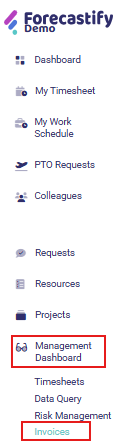
- Use the search bar to find specific projects.
- Filter by status (Total, Paid, To Be Paid, Overdue).
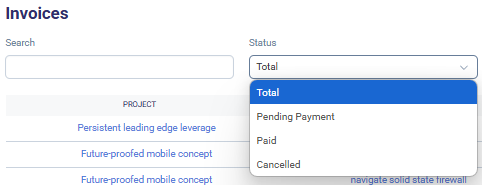
- Navigate to Management Dashboard > Invoices.
-
Reviewing Invoice Details
-
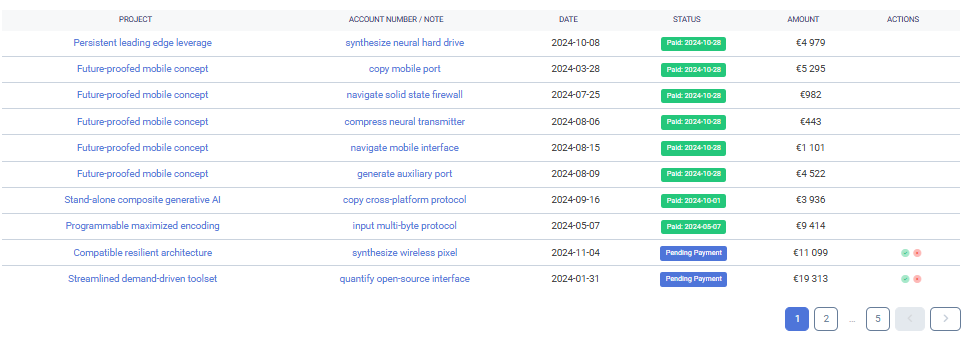
Check invoice amounts and payment statuses.
-
Verify if there are any pending or overdue invoices.
-
-
Taking Action
- Initiate invoice follow-ups with clients if needed.
- Mark invoices as paid when transactions are completed.

- Cancel invoice if needed.

- Export invoice records for financial reporting.
Typical Use Cases
- Monitoring employee work hours and identifying unlogged time.
- Conducting detailed queries to analyze work log patterns.
- Reviewing and addressing financial risks associated with incorrect work logs.
- Managing project invoices and tracking payment statuses.