User Management
All settings and configuration possibilities related to users.
Overview
The User Management module provides system administrators with tools to oversee users, their attributes, teams, work schedules, and permissions. This module ensures efficient personnel management and compliance with company policies.
Key Components
- Users: Manage individual user accounts and details.
- User Profiles: Define attributes like roles, competencies, and seniority.
- Teams: Organize users into structured teams.
- Work Schedules: Monitor and assign work hours.
- Manage Work Schedules: Bulk-assign work schedules for efficiency.
The User Management module centralizes user administration, ensuring efficient onboarding, team coordination, and schedule management. Its structured process flow enhances user experience and workforce organization.
Key Features
Users
- Search and Filter: Locate users by name, email, role, or seniority.
- Import/Export: Synchronize user data with external sources.
- Create & Edit Users: Define user details, including participation in timesheets.
- Password Recovery: Securely reset user credentials.
User Profiles
- Manage Areas: Assign users to business areas (e.g., Development, HR, Finance).
- Define Roles: Set job roles like Developer, Project Manager, or Consultant.
- Seniority Levels: Categorize users into Junior, Mid-level, and Senior ranks.
- Competencies: Link skill sets to user profiles.
Teams
- Team Overview: View and manage team memberships.
- Create New Teams: Group employees for project collaboration.
- Modify Teams: Update or delete team structures as needed.
Work Schedules
- Schedule Management: View and assign work hours and locations.
- Customization: Adjust individual schedules.
Manage Work Schedules
- Bulk Assignment: Efficiently allocate schedules across multiple employees.
- Mass Editing: Apply schedule changes in bulk.
How to Use
-
Adding a New User
-
Navigate to User Management > Users.

-
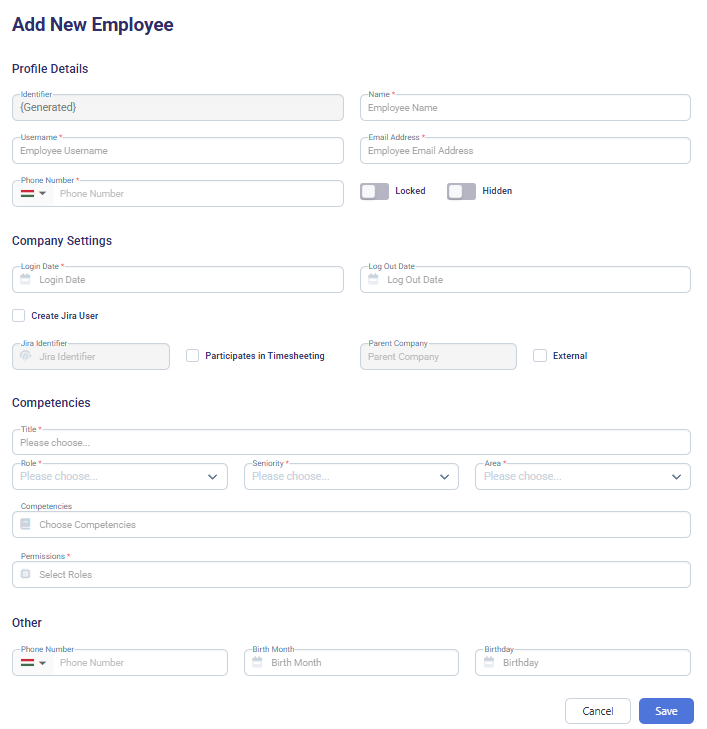
Click Create New User.

-
Enter required details (name, email, role, seniority, etc.).
-
Assign relevant permissions and save changes.

-
-
Editing an Existing User
-
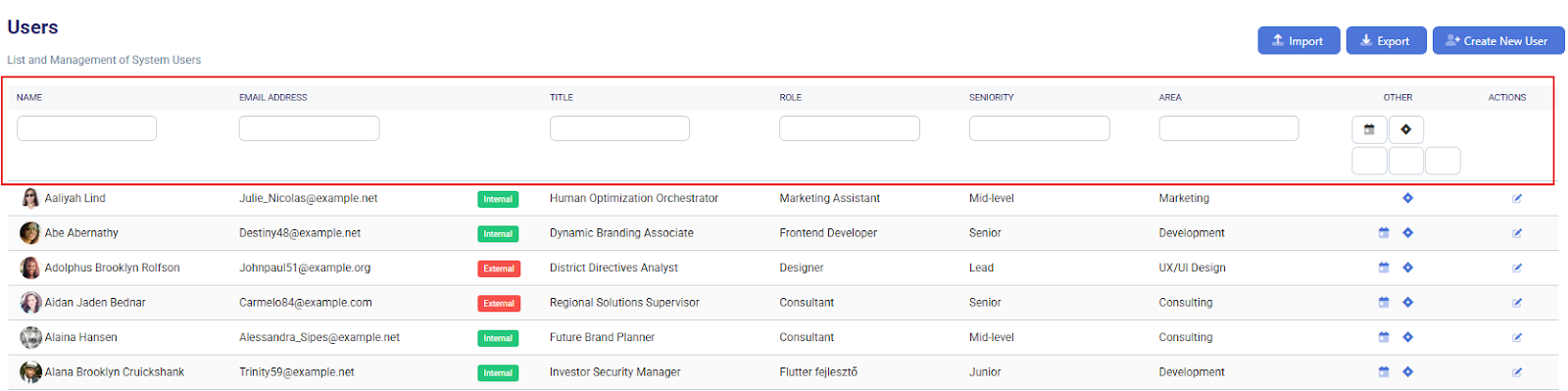
Locate the user via the search bar.
 ]
] -
Click the edit
 icon and modify details as needed.
 -
Save changes.
-
-
Managing User Profiles
- Navigate to User Management > User Profiles.

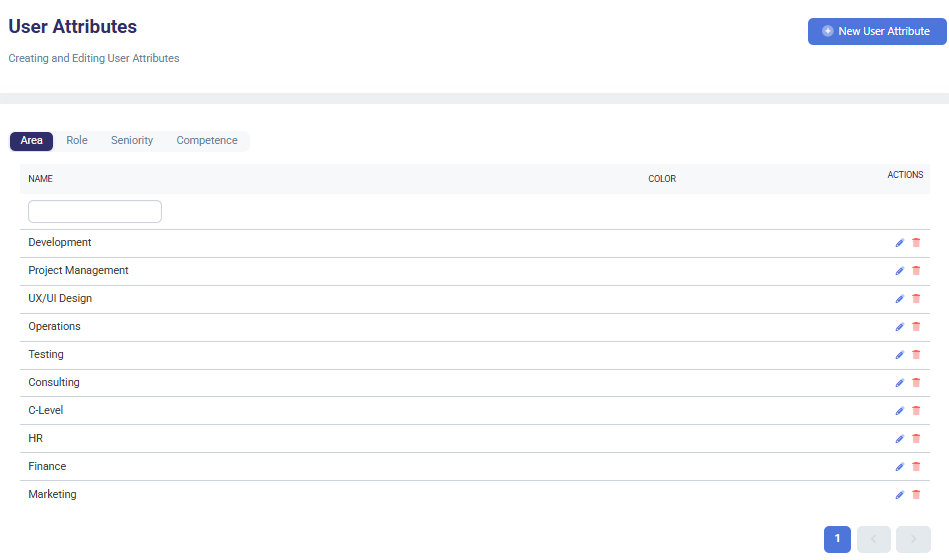
- Switch between tabs to manage:
- Navigate to User Management > User Profiles.
-
Area: Add, edit or delete business areas (e.g., Development, HR).
-
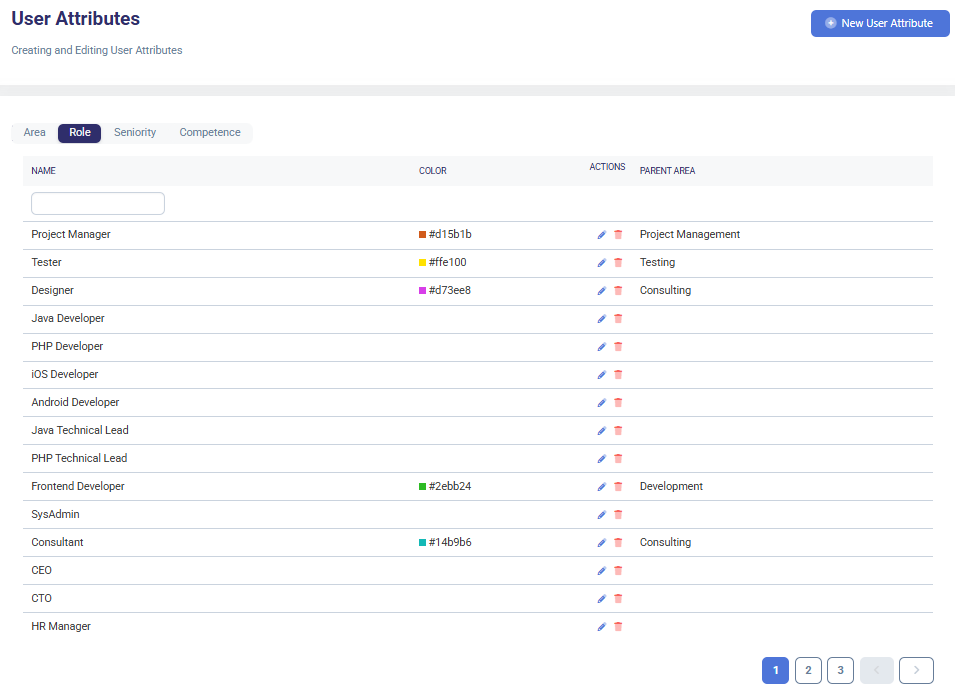
Role: Define, edit or remove job titles and map them to parent areas.
-
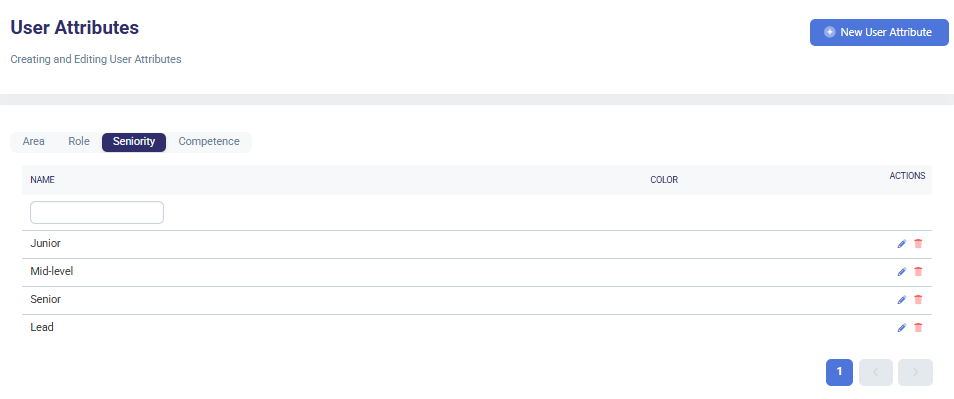
Seniority: Create, update or delete levels like Junior, Mid-level, or Lead.
-
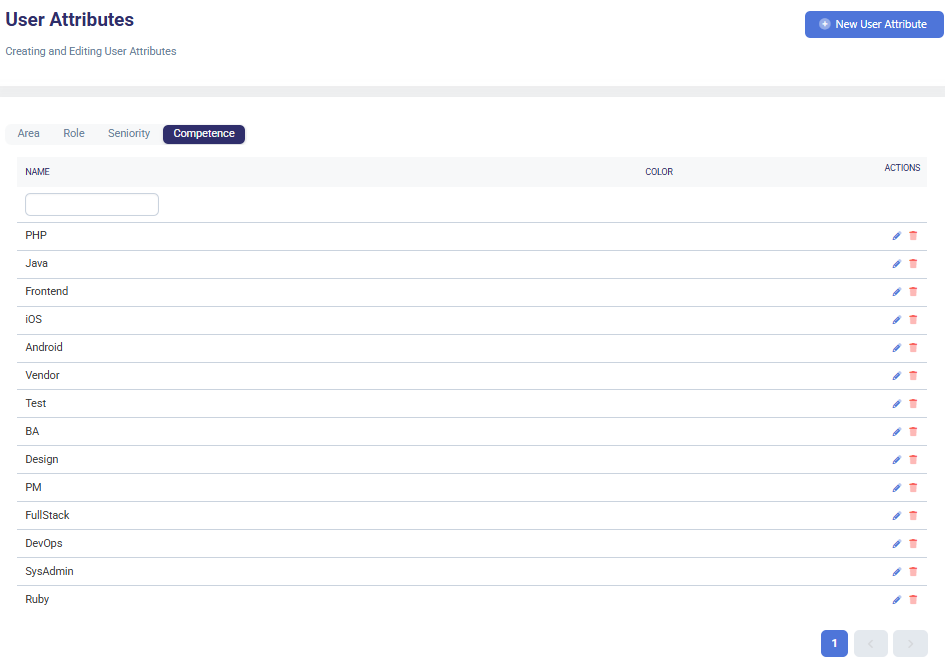
Competence: Define, edit or remove specific skills (e.g., PHP, UX/UI, DevOps).
- Use the New User Attribute button to add new values.


- Edit
 or delete
  existing attributes as needed.
- Use the New User Attribute button to add new values.
- Creating a Team
- Go to User Management > Teams*.*

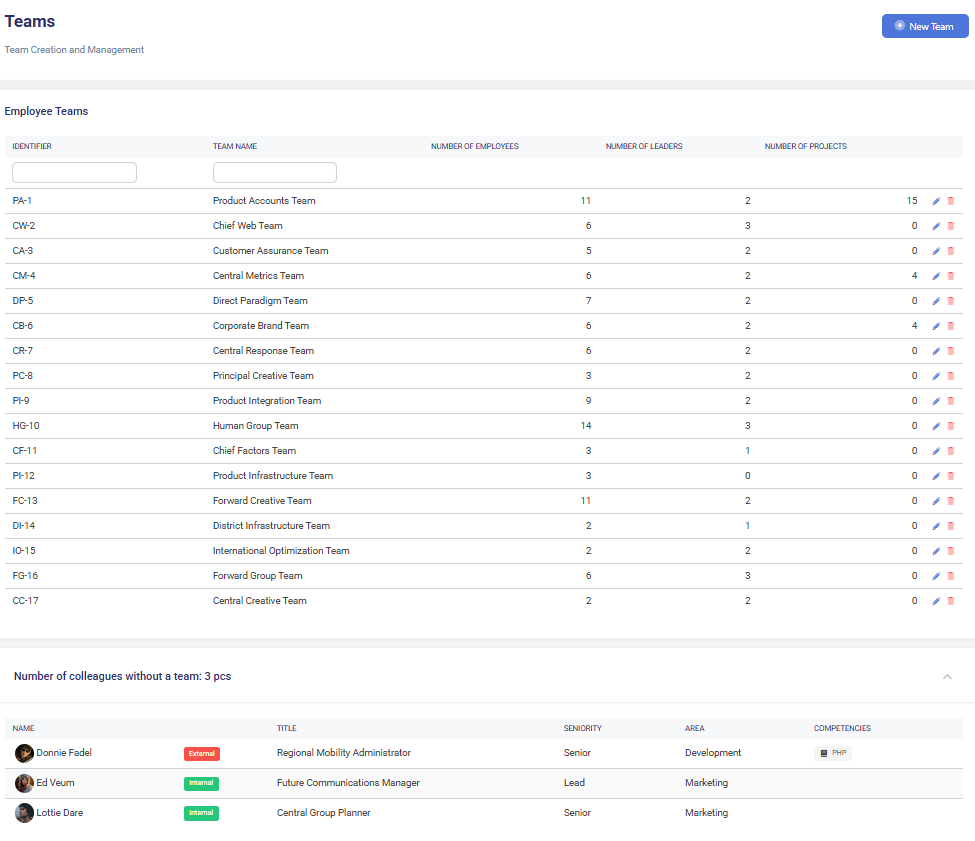
- Review, update or delete team details, such as:
- Go to User Management > Teams*.*
-
Team name
-
Assigned employees
-
Team leaders
-
Linked projects
- Click New Team and define team details.

- Add employees and assign leadership roles.

- Save the team configuration.
- Click New Team and define team details.
- Viewing Work Schedules
- Navigate to Work Schedules.

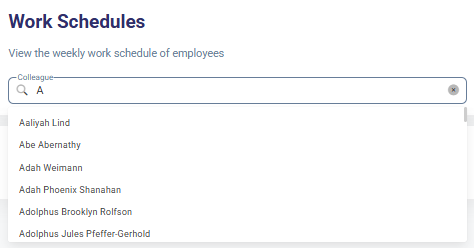
- Search and select an employee from the dropdown list.
- Review the assigned daily work schedule, including:
- Navigate to Work Schedules.
- Planned working hours
- Project tasks and duration
- Work location (e.g., Office, Home Office)
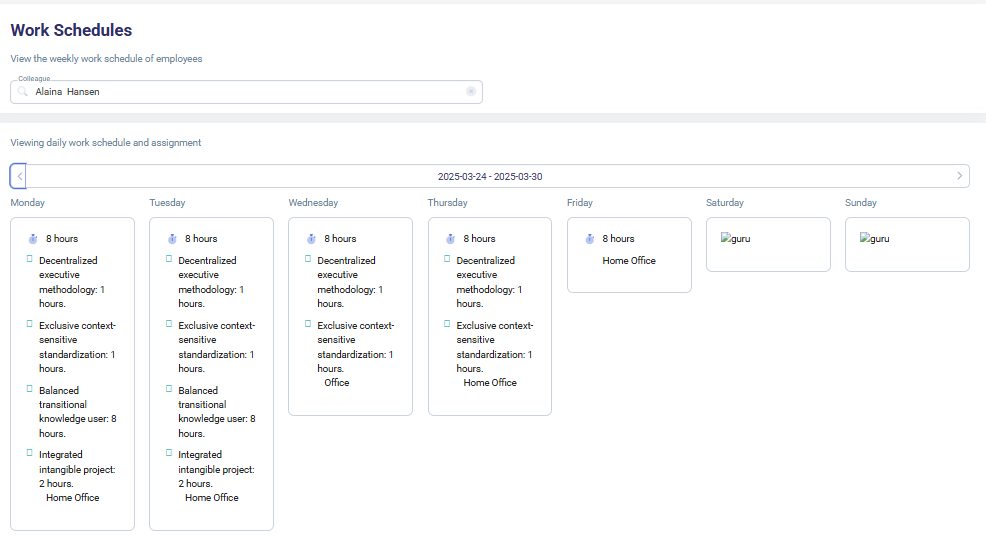 4. Use the arrows to navigate between weeks.
- Bulk Editing Work Schedules
- Navigate to User Management > Manage Work Schedules.

- Select multiple employees.
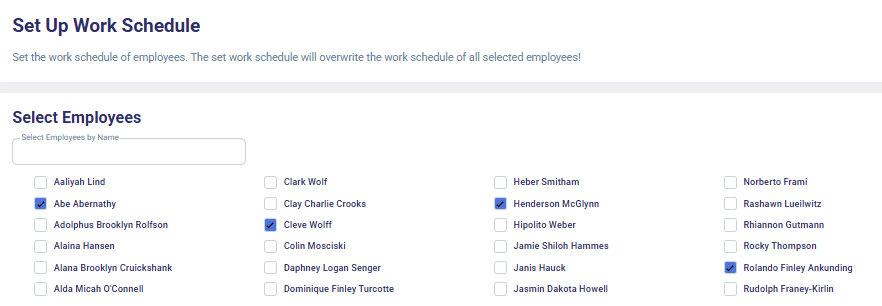
- Assign standard weekly working hours and locations in bulk.

- Apply and save the changes.
- Navigate to User Management > Manage Work Schedules.
Typical use cases
- Scenario 1: Onboarding a New Employee
Problem: A new employee needs system access and work schedule setup. Solution:
- Admin creates a new user profile and assigns a role.
- Work schedule is configured under Work Schedules.
- The user is added to the appropriate team.
- Scenario 2: Changing an Employee’s Role
Problem: An employee is promoted and needs updated permissions. Solution:
- Admin navigates to User Management > Users.
- The user’s role, seniority, and permissions are updated.
- The employee’s team assignment is modified if necessary.
- Scenario 3: Bulk Updating Work Schedules
Problem: A group of employees has a new work schedule. Solution:
- Admin selects multiple employees in Manage Work Schedules.
- New work hours and locations are applied in bulk.