Requests
The Requests menu allows managers to manage and track submitted requests, including overtime and paid time off (PTO) approvals. This section enables managers to review, approve, or reject requests efficiently, ensuring proper documentation and approval workflows.
Key Features
- Request Management Dashboard – A centralized menu to handle different types of employee requests.
- Overtime Requests – Managers can review and process submitted overtime requests.
- PTO Requests – Managers can approve or reject employee leave requests.
- Approval Section – A dedicated space for managers to handle pending requests.
The menu item contains two subsections:
Overtime Requests
Functions
- Overtime Request List – Displays submitted overtime requests, including:
- Request Date
- Employee Name
- Status (Pending, Approved, Rejected)
- Type of Overtime
- Overtime Date
- Overtime Hours
- Ticket reference (if applicable)
- Actions (Approve, Reject, Modify)
- No Pending Requests Notification – Displays a message when no overtime requests are pending.
- Approval Section – Managers can review and process overtime requests.
How to Use
- Navigate to Overtime Requests Menu → Click on Requests and select Approve Overtime Requests.
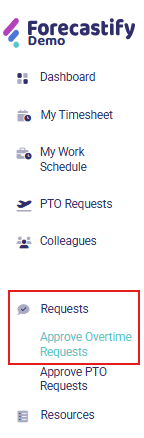
- Review Pending Requests → Managers access the Approve Overtime Requests section.
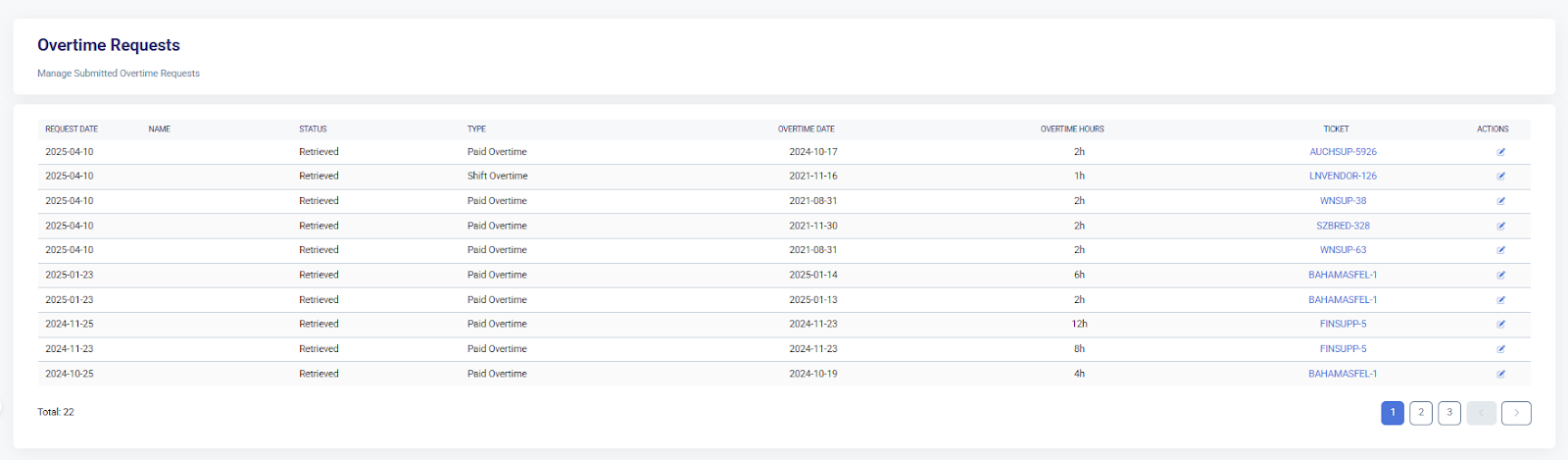
- Approve or Reject Requests → Managers review request details and take the appropriate action.

Typical Use Case
Approving or rejecting an overtime request – Managers handle employee overtime submissions.
Approve PTO Requests
Functions
- PTO Balance Overview – Displays:
- Total annual leave
- Remaining days
- Used days
- Reserved PTO
- Grid View of PTO Requests – A structured table listing all submitted leave requests.
- Detailed PTO Request Information:
- Date of Request – When the PTO request was submitted.
- Type – Categorization of the leave request (e.g., Normal, Sick Leave, Mandatory Leave).
- Status – Indicates whether the request is Used Up, Withdrawn, or Pending.
- Description – Notes provided when the PTO request was submitted.
- Requested PTO Dates – The specific days for which the leave was requested.
- Actions – Options to manage PTO requests, such as withdrawing or modifying requests (if applicable).
- Add New Request – Use this button to initiate a new PTO request on behalf of employees.
How to Use
-
Navigate to PTO Requests Menu → Click on Requests and select Approve PTO Requests.
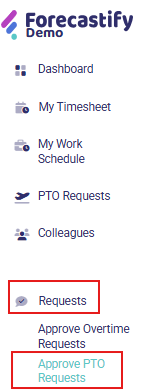
-
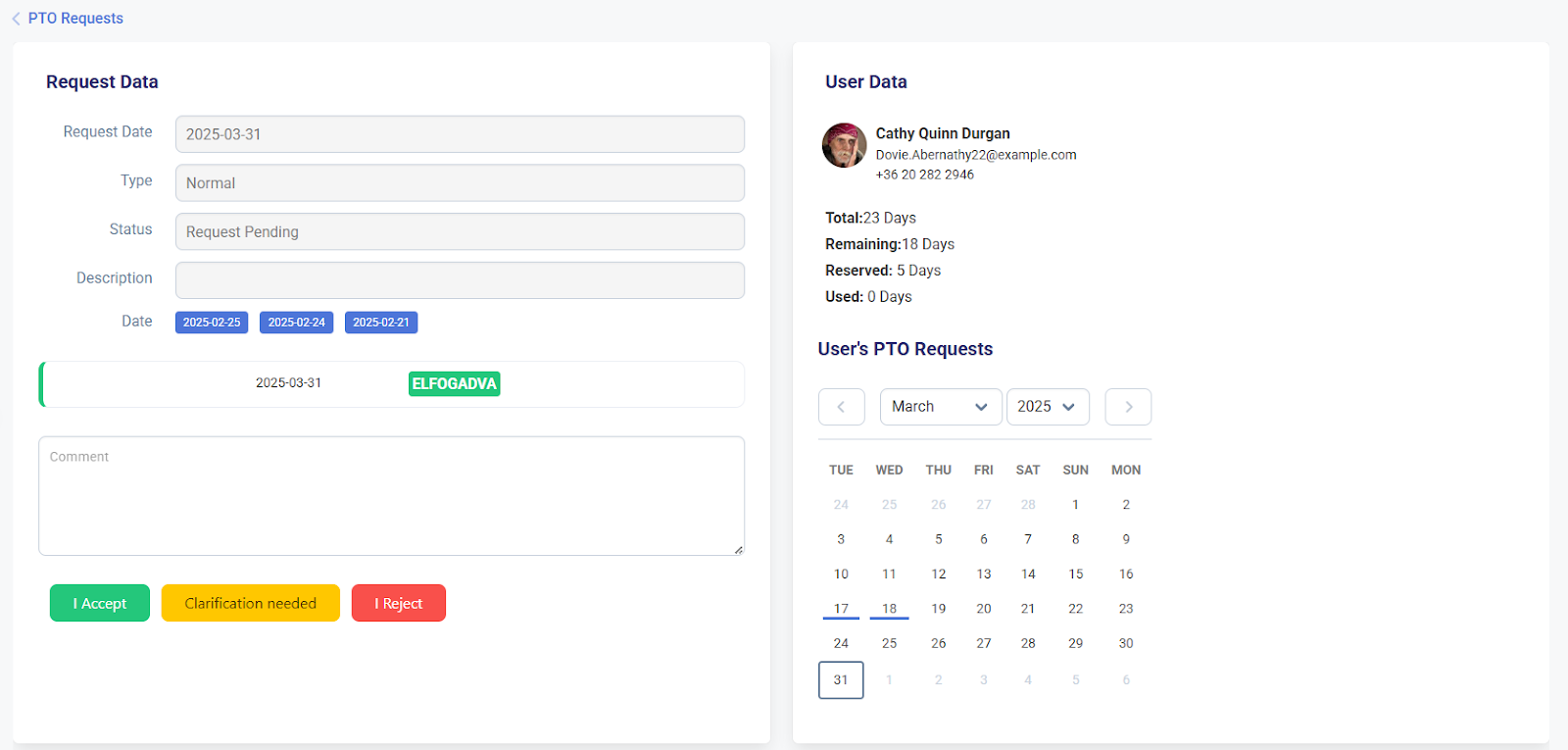
Review PTO Requests → Managers view submitted requests and assess employee leave balances.

-
Approve or Reject PTO Request → Review details and take action.
Typical Use Case
Approve or reject a PTO request – Managers handle employee leave submissions.