Profile
Settings of your Profle, where you can admin your API keys, set your language and style preferences.
Overview
The Profile module in Forecastify allows users to manage their personal information, security settings, API keys, and appearance preferences. This module ensures that employees can update their contact details, configure authentication settings, and personalize their user experience. The Profile module ensures that users have complete control over their account settings, improving usability and security across the Forecastify platform.
Key Features
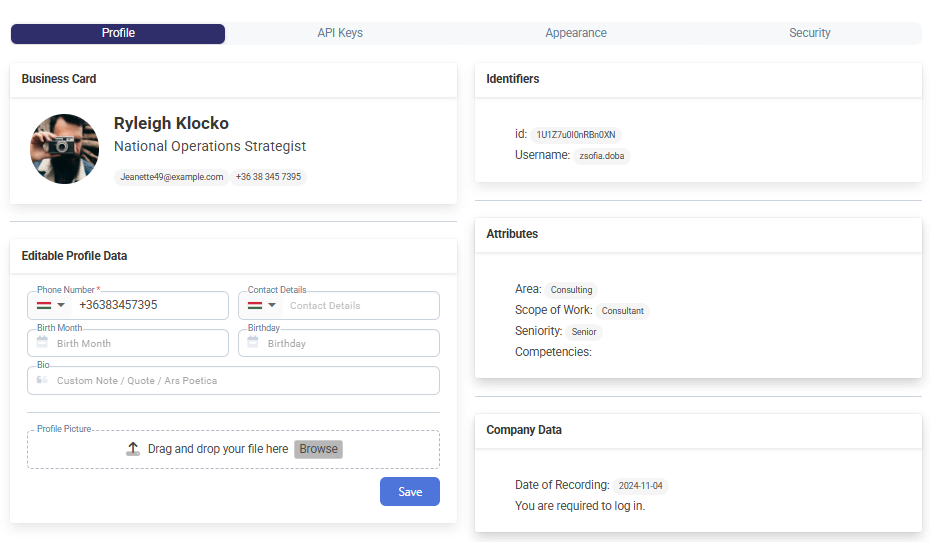
- Editable Profile Data: Users can update personal information, such as phone numbers, birthdates, and biographies.
- Identifiers: Displays unique system identifiers, including username and system-generated ID.
- Attributes: Shows role-related attributes such as seniority level, area of expertise, and competencies.
- Company Data: Provides company-related details, including the date of recording and login requirements.
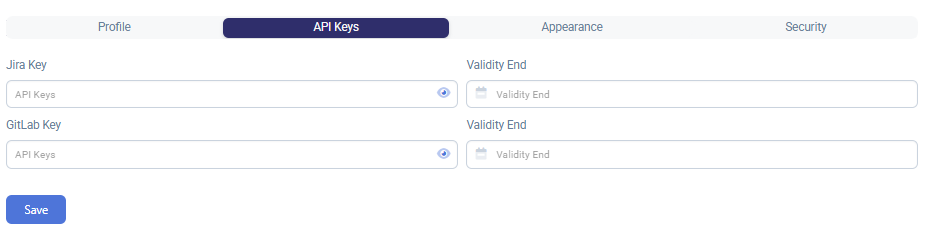
- API Keys Management: Allows users to store and manage Jira and GitLab API keys with expiration settings.
- Appearance Customization: Users can change the color scheme and language preferences.
- Security Settings: Enables users to change passwords, view active logins, and log out from devices.
How to Use
-
Navigate to your Profile at the bottom of the menu bar.

-
Updating Profile Information
- Modify any editable fields, such as phone number, birthday, or bio.
- Upload a new profile picture if desired.
- Click Save to apply changes.
-
Managing API Keys
- Go to the API Keys tab.
- Enter or update Jira and GitLab API keys.
- Set the expiration date for each key.
- Click Save to store the keys securely.
-
Customizing Appearance
- Open the Appearance tab.
- Select a preferred Color Scheme from the dropdown menu.
- Choose a Language for the user interface.
- Changes are automatically applied.

-
Updating Security Settings
- Navigate to the Security tab.
- To change a password:
-
Enter a new password meeting security requirements.
-
Confirm by entering the current password.
-
Click Edit to update.
- To manage active logins:
-
Review the list of active sessions.
-
Click Log Out next to a specific session or Sign Out from All Devices to terminate all active sessions.

Typical Use Cases
- Employee Updates Contact Information
A user wants to update their phone number and bio. They navigate to the Profile section, edit the necessary fields, and save the changes.
- Developer Stores API Keys
A software developer working with Jira and GitLab needs to store API keys securely. They enter the keys in the API Keys tab and set expiration dates for security.
- User Customizes UI Preferences
An employee prefers a dark color scheme and a different language for the interface. They adjust the settings in the Appearance tab, and the changes are applied instantly.
- Employee Resets Password
A user wants to enhance their account security by updating their password. They enter a new password following security guidelines, confirm it with the current password, and save the changes.