PTO Management
Absence, PTO settings and configuration, from PTO quotas to special days like national holidays.
Overview
The PTO Management module in Forecastify enables administrators and managers to efficiently handle paid time off (PTO) requests, quotas, and holidays. It allows to request leave, managers to approve or deny requests, and HR to maintain an organized record of PTO balances. The system streamlines the process, ensuring transparency, accurate tracking, and structured reporting for all stakeholders.
Key Features
- PTO Requests: View, manage, approve, and reject PTO requests.
- New PTO Request: Submit a new PTO request manually.
- Holidays: Define public holidays and special leave days.
- PTO Quotas: Manage individual PTO balances for employees.
- PTO Types: Customize different leave types such as sick leave, vacation, and special leaves.
- Reports: Generate reports on PTO usage and absences, including monthly attendance and yearly absence reports.
How to Use
Approving or Rejecting PTO Requests
-
Go to PTO Requests in PTO Management.

-
Use the filter options to find specific requests by date, employee, or status.

-
Click the Edit
 icon next to a request to review details.

-
Choose one of the following actions:
- Green checkmark (
 ) – Approve the request.
 - Yellow clarification icon (
 ) – Request additional clarification.
 - Red cross (
 ) – Reject the request.
- Green checkmark (
-
The system updates the PTO quota automatically.
Submitting a PTO Request
-
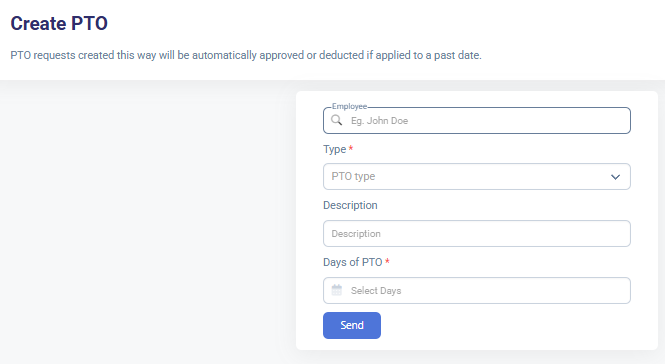
Navigate to New PTO Request under PTO Management.

-
Select the employee making the request.
-
Choose the PTO type (e.g., vacation, sick leave).
-
Add a description and select the requested leave dates.
-
Click Send to submit the request.
Setting Up Holidays
-
Open the Holidays menu.

-
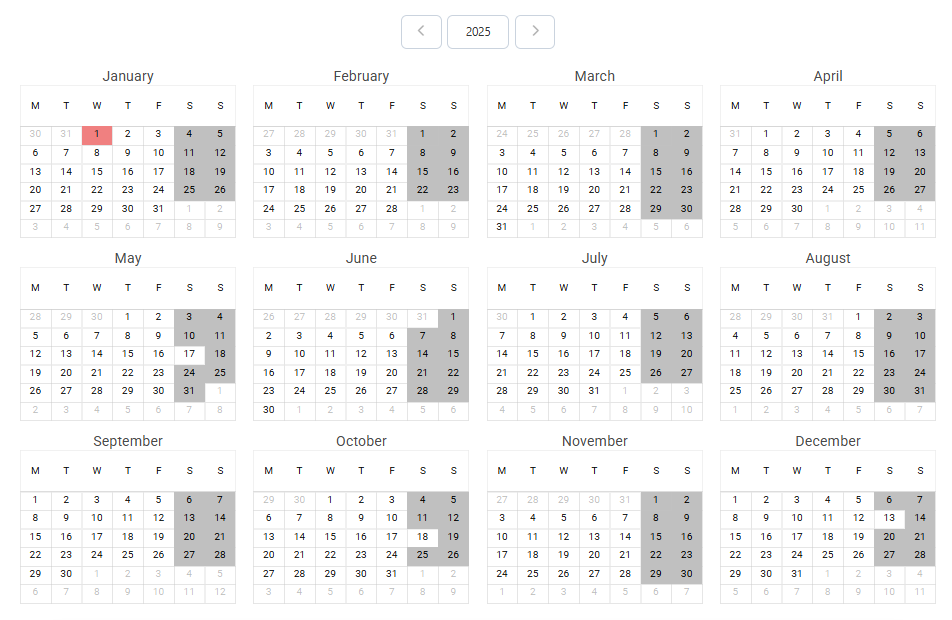
View calendar.
-
Add weekends (bulk action): Select the desired year from the dropdown, then click Add Weekend to assign all Saturdays and Sundays for that year automatically.

-
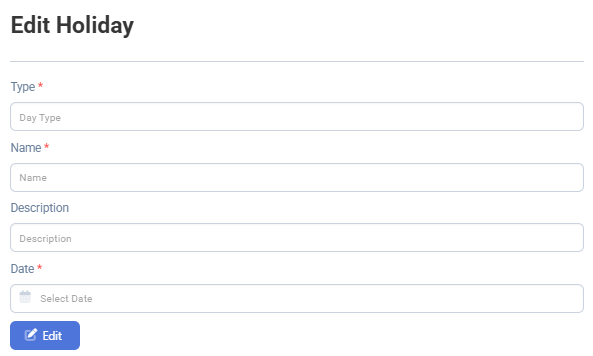
Click Add New Day.

-
Enter the holiday name, type, and date.

-
Send the holiday to update the company calendar.
-
Use the edit (
) or delete ( ) icons in the holiday list to update or remove entries.

Managing PTO Quotas
-
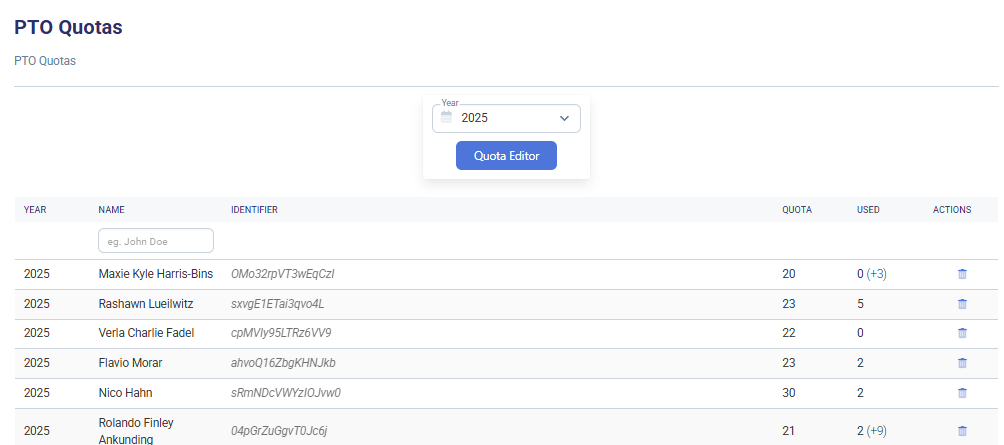
Navigate to PTO Quotas.

-
Select the relevant year and employee.
-
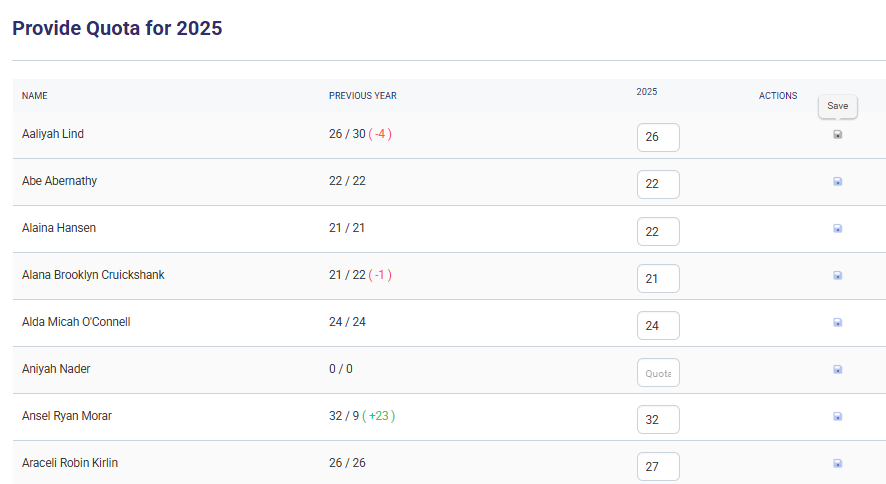
Access and edit quotas: Click the Quota Editor button to open the detailed quota editing interface.

-
Edit and save previously set quotas.
-
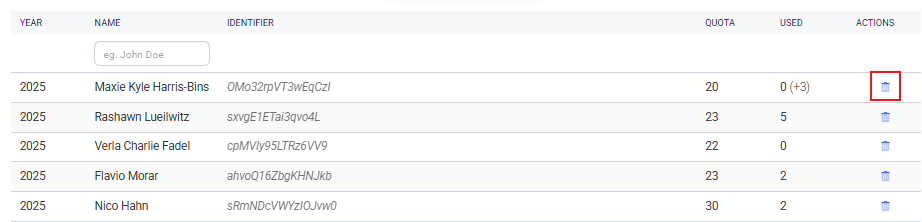
Delete a Quota (Optional): In the main PTO Quotas screen, you can delete a quota entry using the trash icon under Actions.
PTO Types
-
Navigate to PTO Types under PTO Management.

-
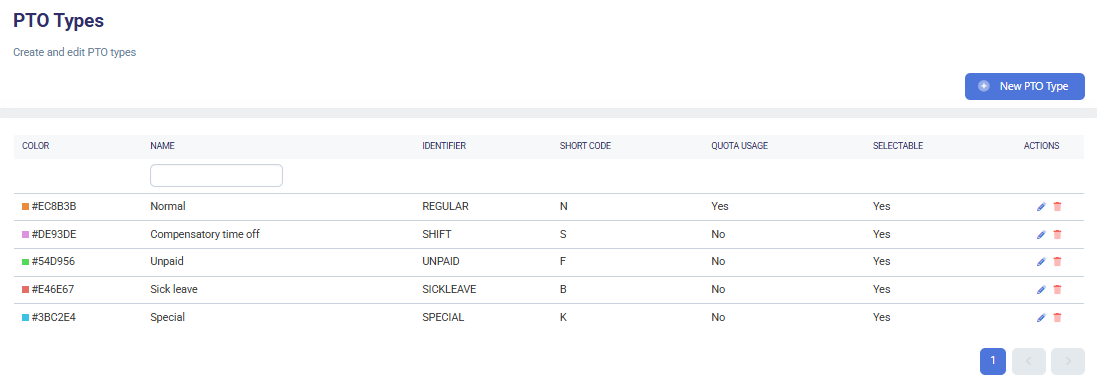
View existing types: Review the list of existing PTO types, including name, identifier, sign, quota usage, and selectability.
-
Create a New PTO Type
- Click the New PTO Type button.

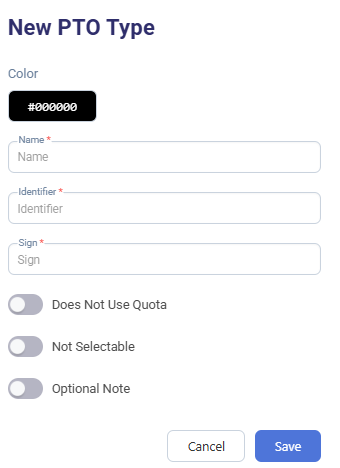
- Fill in the required fields:
- Click the New PTO Type button.
-
Name – e.g., Sick leave, Vacation
-
Identifier – short internal name
-
Sign – symbol/letter for quick reference
-
Select relevant switches:
- Does Not Use Quota
- Not Selectable
- Optional Note
-
Choose a color for easy visual identification.
-
Click Save.
- Edit or Delete an Existing PTO Type:
- Click the pencil icon to edit a PTO type.
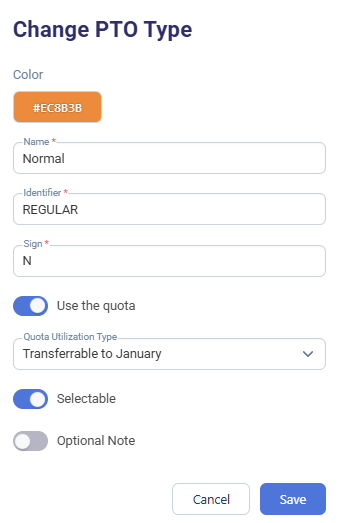
- Make adjustments to fields or switches.
- Click Save to apply changes.
- Use the trash icon to remove a type if needed.
- Click the pencil icon
Generating PTO Reports
- Navigate to Reports under PTO Management.

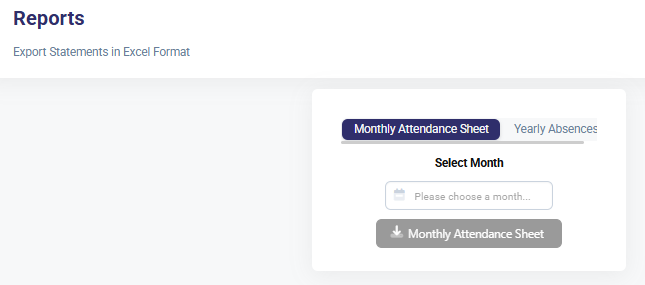
- Select the type of report:
-
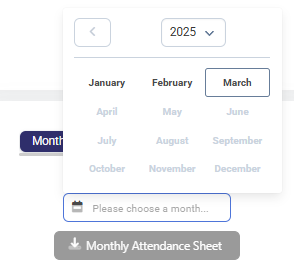
Monthly Attendance Sheet – Choose a month to generate attendance records. Click on the Monthly Attendance Sheet to download.
-
Yearly Absences – Choose a year to view employee absences. Select year. Click on the Absences for the Selected Year to download.

-
Typical Use Cases
- Employee Requests Leave
An employee submits a PTO request for vacation days. The manager reviews and approves it, and the system deducts the requested days from the employee's PTO balance.
- Manager Adjusts a PTO Quota
An employee receives additional PTO days due to a policy change. The HR team adjusts the PTO quota manually.
- HR Sets Company Holidays
The HR department adds national and company-specific holidays to ensure they appear in the leave planning tool.
- Manager Reviews and Rejects a PTO Request
A manager reviews an employee’s PTO request but rejects it due to scheduling conflicts. The employee is notified, and no changes are made to the PTO balance.
The PTO Management module streamlines the leave request and approval process, ensuring transparency and proper PTO tracking for employees and management alike.
- HR Generates PTO Reports
HR generates a Monthly Attendance Sheet to review PTO usage for payroll processing or a Yearly Absence Report to analyze company-wide leave trends.