Projects
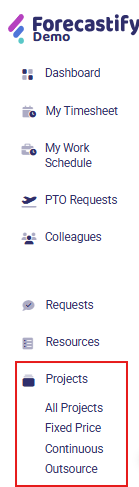
The Projects menu provides an organized view of all ongoing, planned, and archived projects. It enables users to manage project details, track financials, oversee resources, and monitor progress. The menu is divided into four submenus:
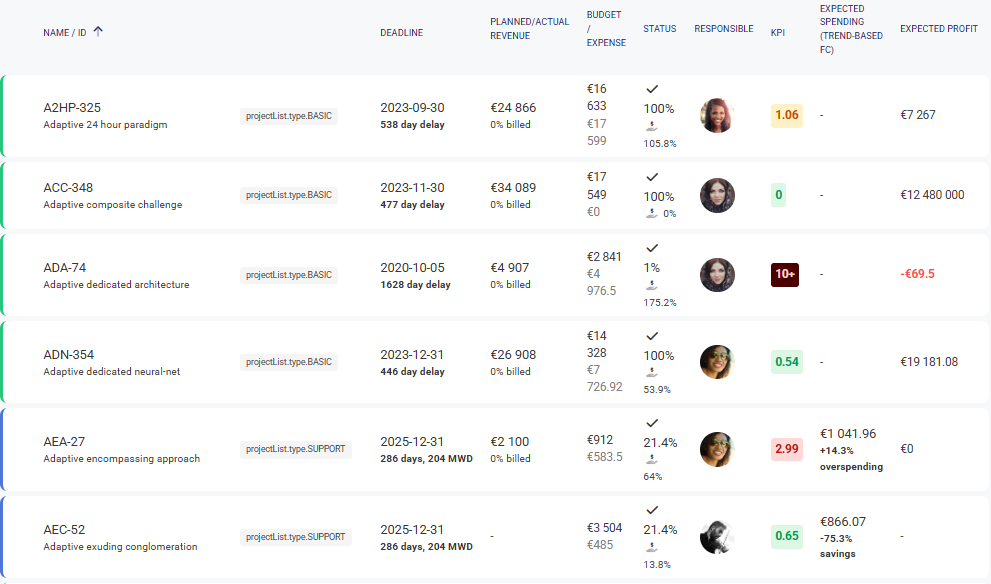
- All Projects – Displays a complete list of projects with financials, KPIs, and deadlines.
- Fixed Price – Manages projects with a pre-defined budget and scope.
- Continuous – Covers projects billed periodically based on effort.
- Outsource – Focuses on external projects managed under contract agreements.
This menu supports financial tracking, resource allocation, and milestone management, ensuring efficient project oversight.
With these features, full budget control can be achieved, ensuring transparent tracking of costs and revenues. With JIRA integration, actual work hours are synchronized in the background and/or can be synced in real time, ensuring up-to-date and accurate reporting of project efforts. This menu ensures comprehensive project management, allowing teams to oversee progress, financials, and resource allocation efficiently.
Key Features
- Project Listing & Filtering – Displays project status, budget, planned/actual revenue, and forecasted profit. Allows filtering by project attributes (status, category, manager, KPI, etc.).
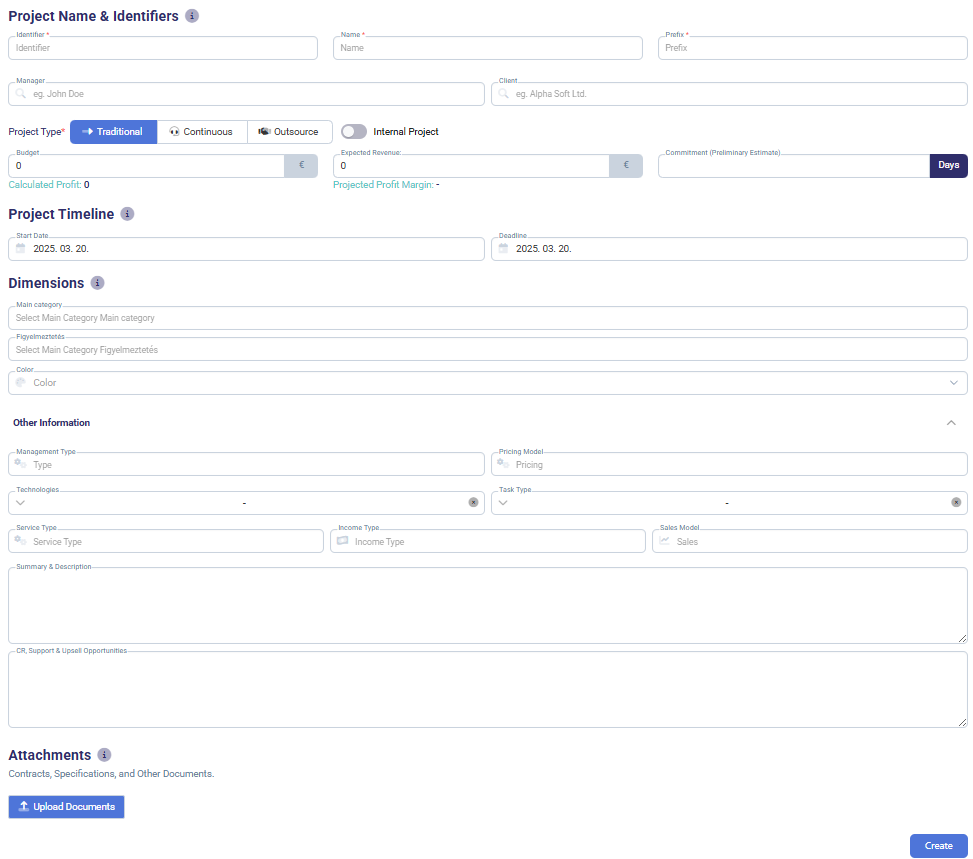
- Project Creation – Add new projects by defining key attributes such as identifier, name, budget, expected revenue, deadlines, and assigned team members.
- Financial Insights:
- Planned vs. Actual Revenue – Tracks project profitability.
- Budget vs. Expense – Monitors financial performance.
- Forecasted Spending & Profit Trends – Estimates financial health.
- Resource Management – Assign employees to projects, track working hours, and ensure optimal resource utilization.
- Milestone & Timeline Management – Set project milestones, deadlines, and commitments.
- Invoice & Expense Tracking – Manage issued invoices, additional expenses, and revenue tracking.
- Project Risk Indicators – View risk KPIs and financial deviations to assess project stability.
- Contract & Agreement Management – Available under the Outsource submenu.
- JIRA Integration – Sync work hours automatically for real-time project reporting.
How to Use
-
Navigate to Projects Menu → Click on Projects from the left-side navigation panel.
-
Choose the Relevant Submenu
- All Projects: View and manage all existing projects, their status, and basic financial details.
- Fixed Price Projects: Focused view of projects with fixed revenue contracts.
- Continuous Projects: Track ongoing/time-based projects without fixed deadlines.
- Outsource Projects: Manage externally executed projects, track cooperation and associated costs.
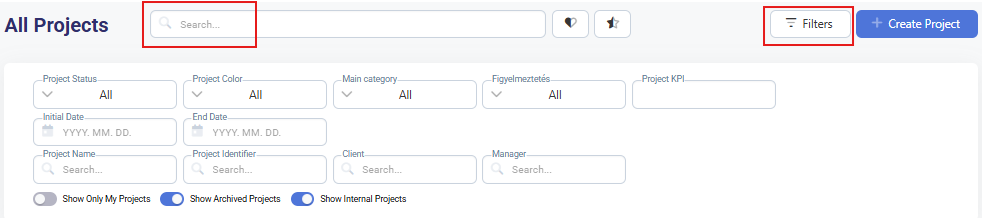
- Viewing & Filtering Existing Projects → Projects can be filtered using the Filters button with the following options:
-
Project Status
-
Project Color
-
Category
-
Warning
-
Project KPI
-
Start & Finish Date
-
Project Name & Identifier
-
Client & Manager
-
Visibility Options: Own projects, archived projects, internal projects
- Create a New Project
- Click +Create Project to create a new project.

- In order to create a new project, the following data has to added:
- Click +Create Project to create a new project.
-
Identifier – Unique project ID
-
Name – Name of the project
-
Prefix – Short project code
-
Manager – Responsible person for the project
-
Client – The client associated with the project
-
Project Type – Traditional / Continuous / Outsource
-
Budget – Internal budget allocation
-
Expected Revenue – Estimated income from the project
-
Commitment – Planned workdays for the project
-
Start Date – Project initiation date
-
Deadline – Expected completion date
-
Category – Classification of the project
-
(Optional) Warning – Alerts for specific project conditions
-
(Optional) Color – Visual categorization for easy identification
-
(Optional) Other Information – Additional project-specific details
-
Click Create. After creation, the project appears in the list with an initial Request Pending status. Views and dashboards will be available immediately, but additional configuration is needed for complete data visibility. In the header a brief summary is shown based on the given data. At this point, Spending and Billed is still 0.

-
-
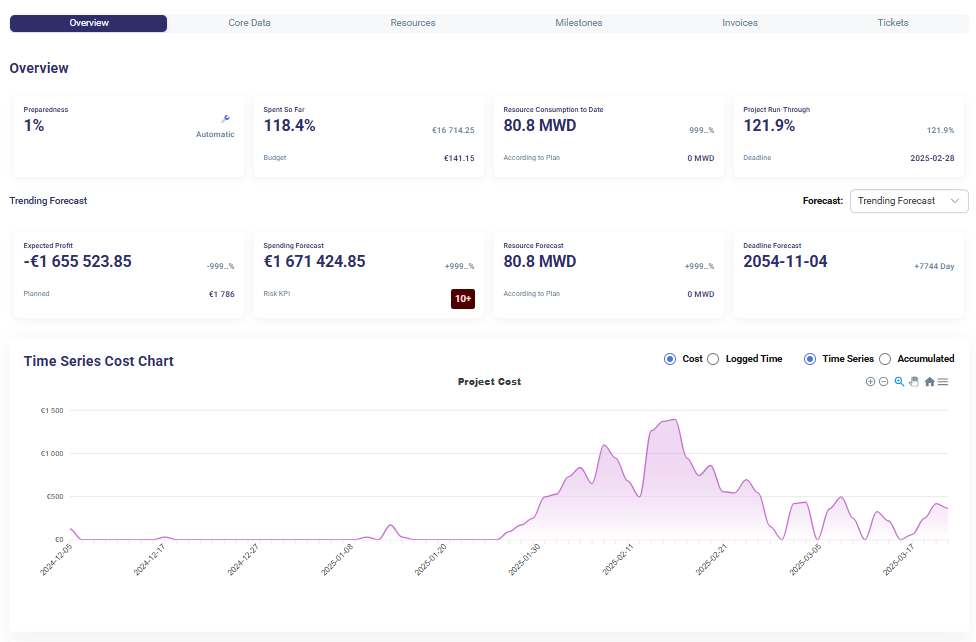
Monitor Project Progress and KPIs (Overview Tab):
-
Open the Overview tab.
-
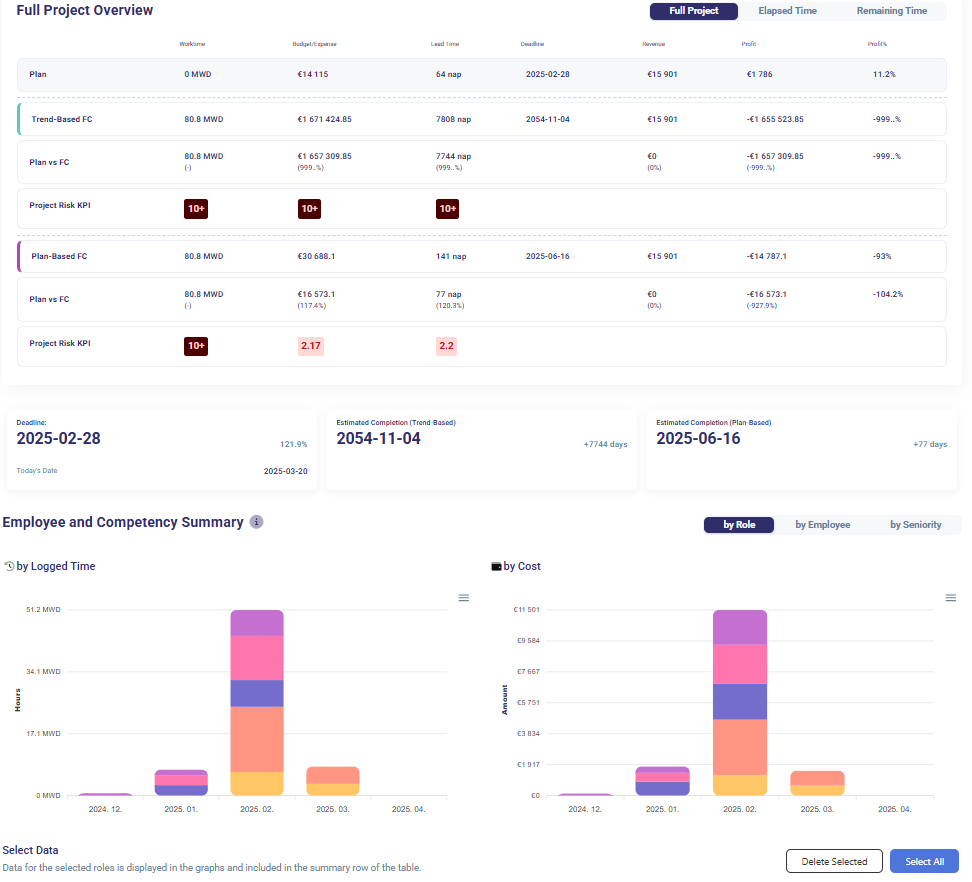
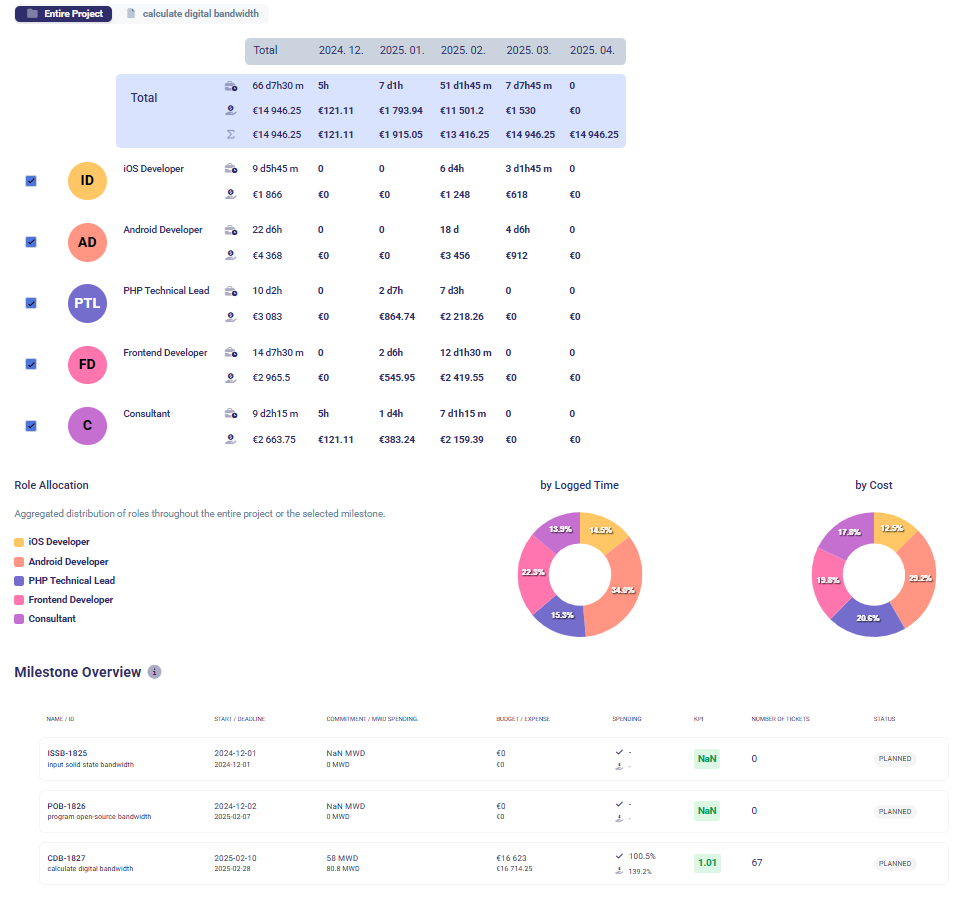
View dashboards displaying current spending, budget usage, milestone progress, and resource allocation.
-
Includes charts for time series cost, project risks, effort tracking, and invoice status.
-
Monitor KPI progress and financial performance.
-
-
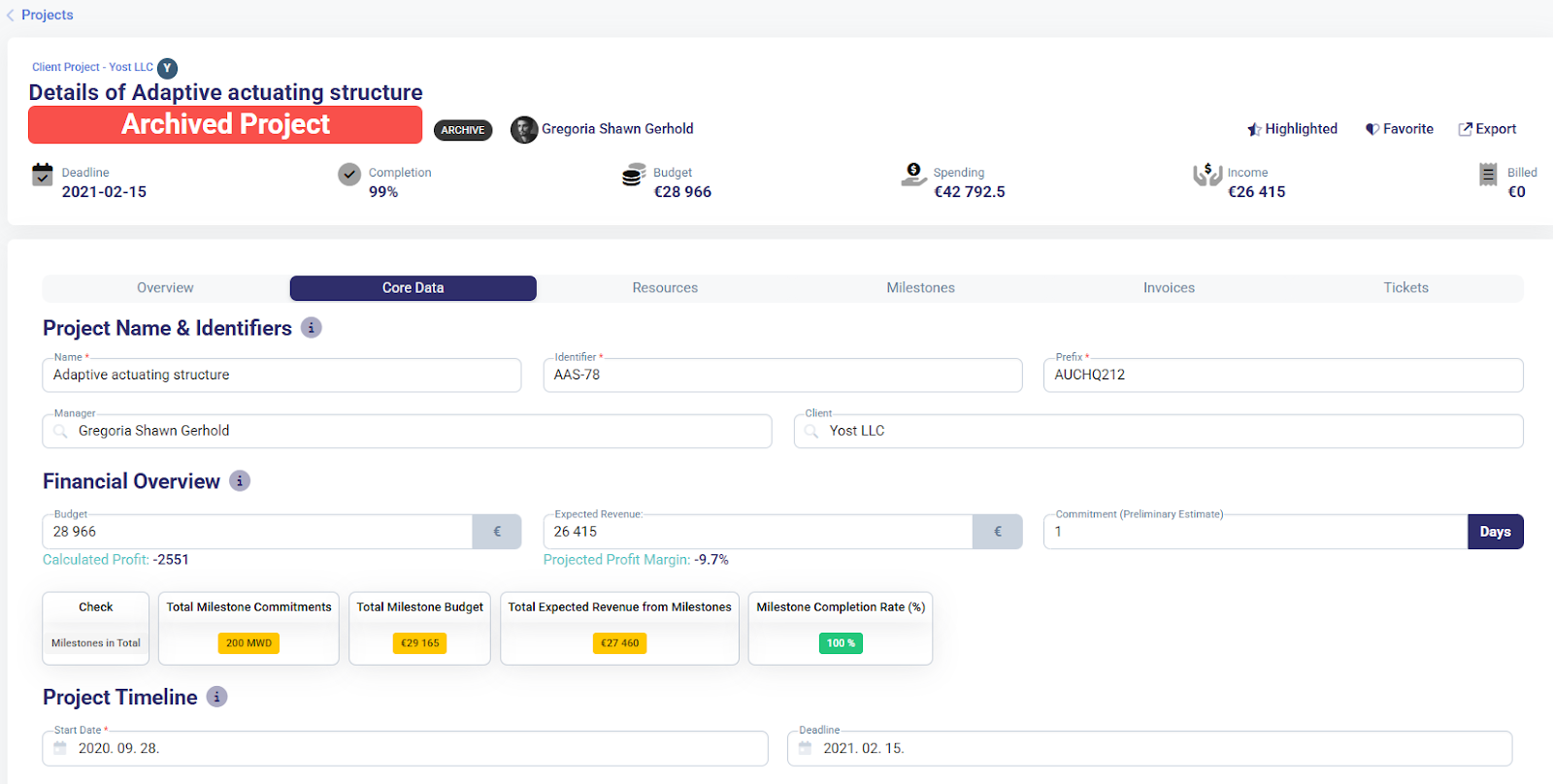
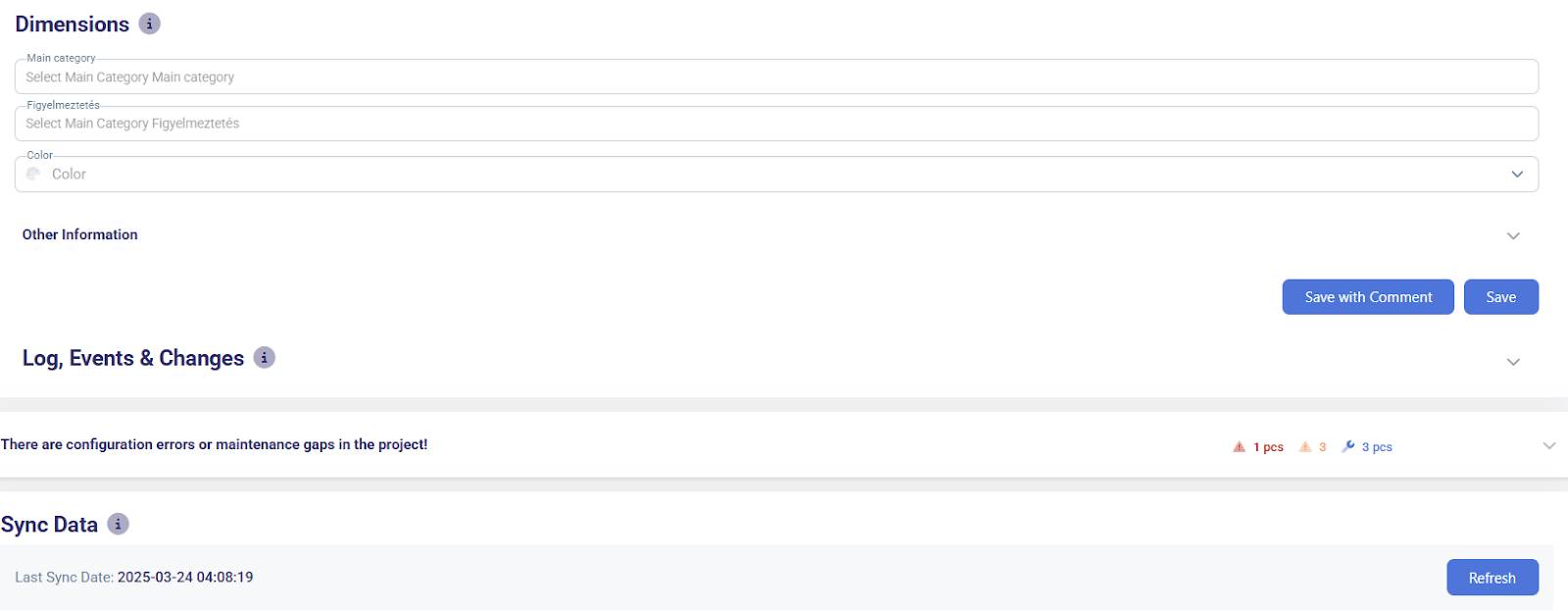
Set Core Data
-
Navigate to the Core Data tab.
-
Modify project fundamentals such as title, budget, revenue plan, category, and dates.
-
Fields can be updated any time after creation.
-
-
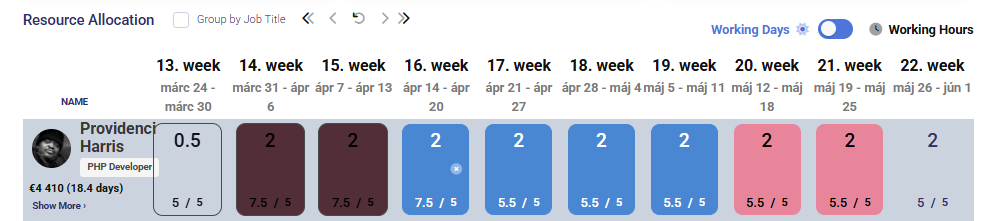
Assign Resources:
-
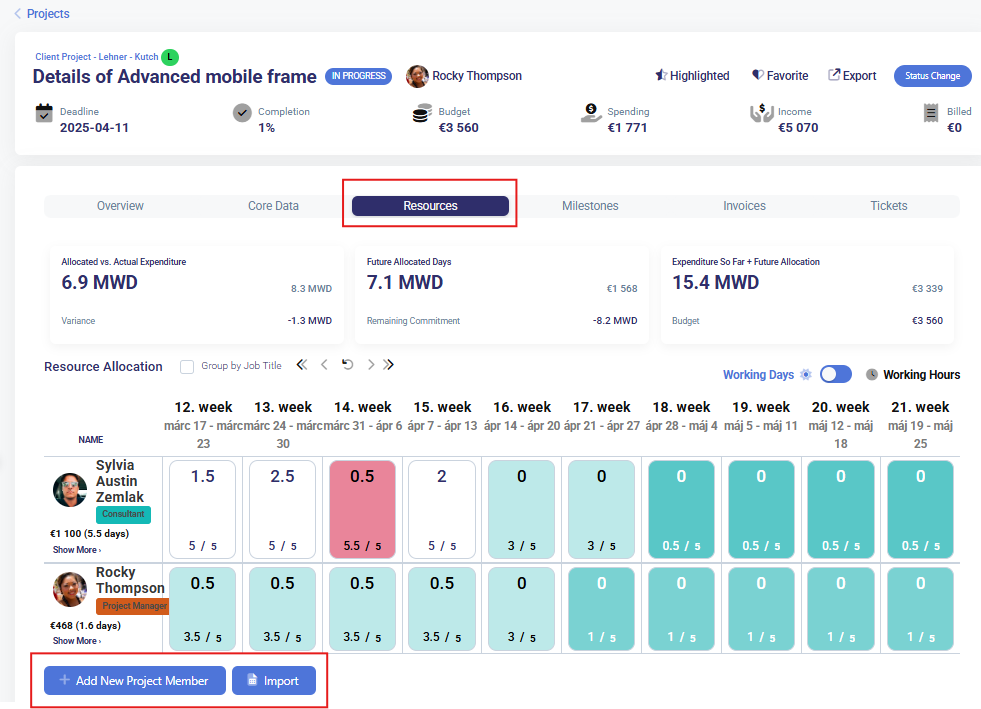
Open the Resources tab.
-
Add employees manually or via import.
-
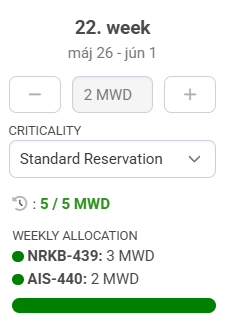
Allocate working days per person and adjust within the grid.
-
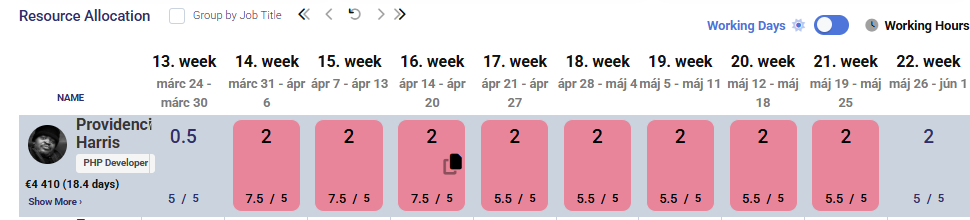
Use copy-paste options within the grid for efficiency.
-
-
Define Milestones:
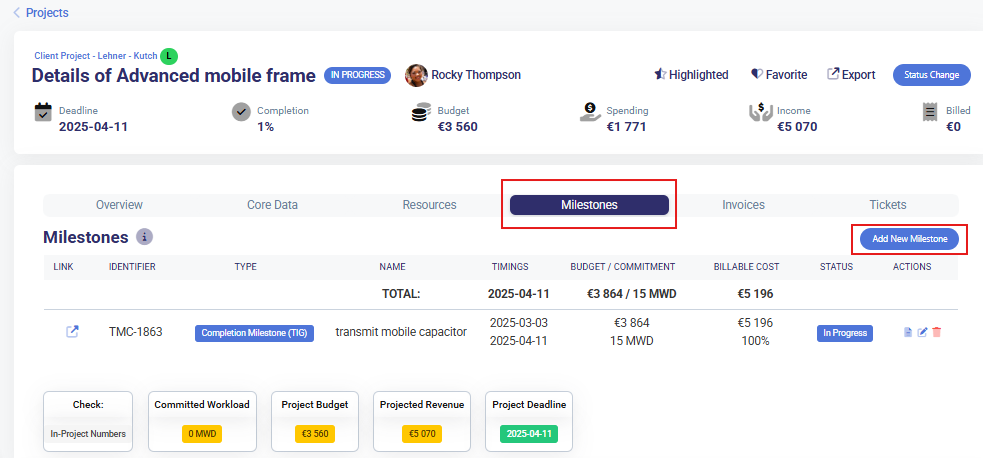
- Go to the Milestones tab within a selected project.
- Click Add New Milestone.
- Complete the following fields:
-
Identifier: Unique code or reference for the milestone.
-
Type: Select the milestone type (e.g., Delivery, Internal, Billing) to define its purpose.
-
Name: Descriptive name of the milestone.
-
Start Date: The planned beginning of the milestone.
-
Deadline: The expected date of completion.
-
Commitment (days): The number of working days allocated to the milestone.
-
Budget: Financial resources assigned to this milestone.
-
Billable Amount: The amount expected to be invoiced once the milestone is completed.
-
Click Save to register the milestone under the selected project.
-
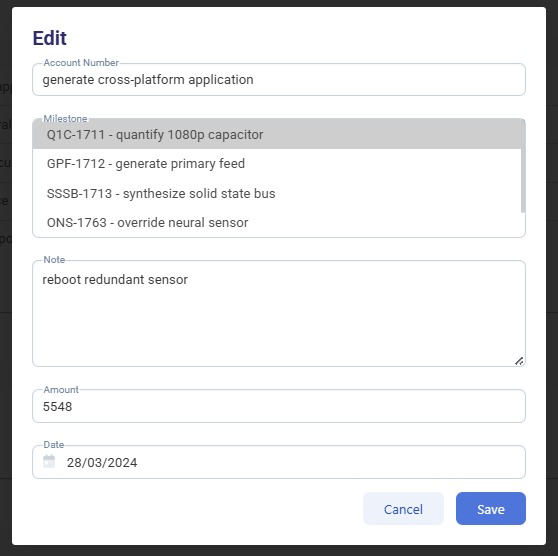
- Track Financials (Invoices Tab):
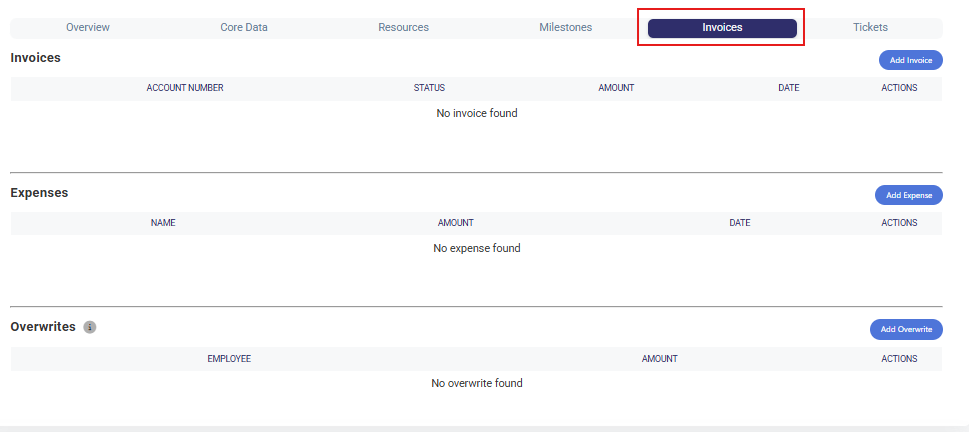
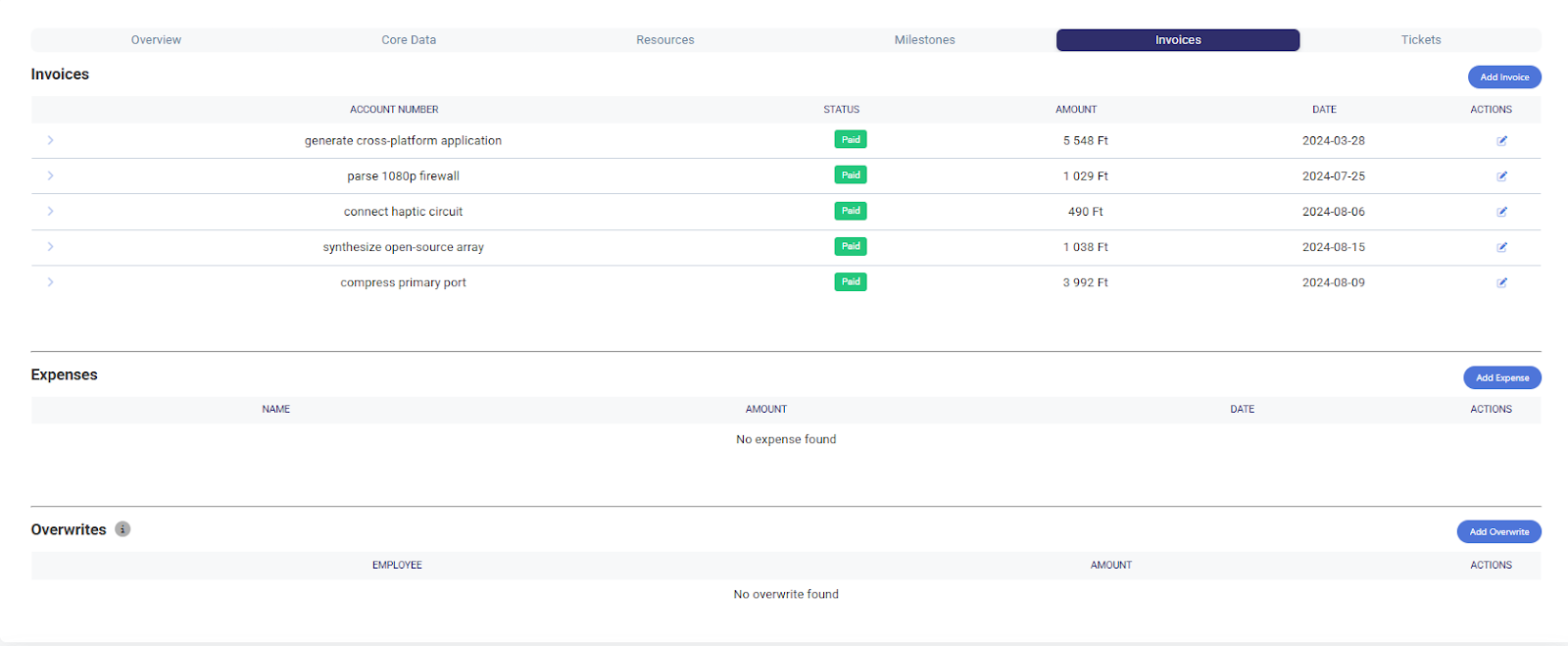
Use the Invoices tab to manage project-related billing:
-
Add billed invoice entries
-
Enter additional costs and overheads
-
Define hourly rate exceptions per resource
-
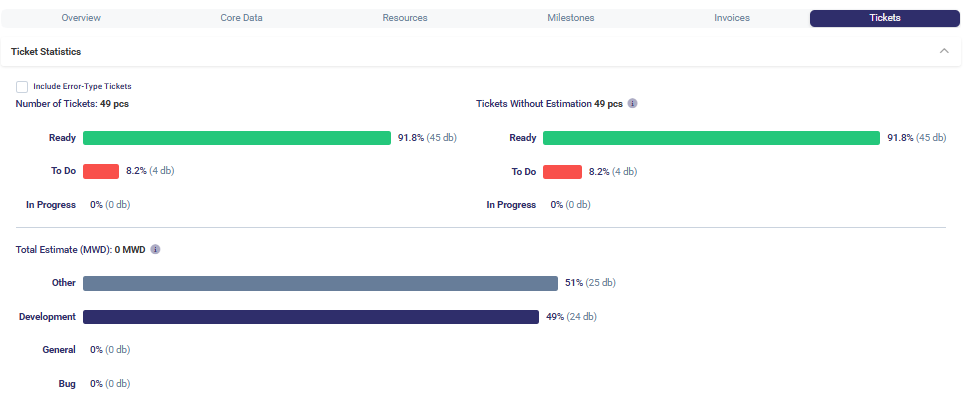
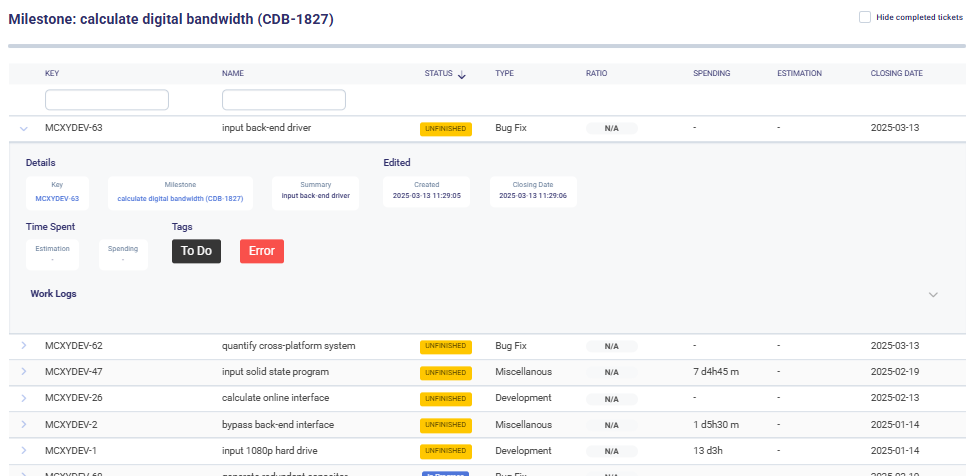
Monitor Project Tickets:
-
Go to the Tickets tab.
-
View a dashboard showing JIRA tickets linked to the project.
-
Review hours logged against each task.
-
-
Sync Work Hours → Ensure JIRA integration for real-time tracking and reporting.

Typical Use Cases
- Creating and setting up a new project.
- Reviewing budget and spending on an active project.
- Assigning or modifying project team members.
- Tracking project KPIs and financial health.
- Managing project milestones and deadlines.
- Recording and issuing invoices for completed work.
- Monitoring time logs and workload distribution.